Insights
Inngest Insights allows you to query and analyze your event and function run data using SQL directly within the Inngest platform. Every event sent to Inngest and every function run contains valuable information, and Insights gives you the power to extract meaningful patterns and analytics from that data.
Insights support is currently in Public Beta. Some details including SQL syntax and feature availability are still subject to change during this period. Read more about the Public Beta release phase here and the roadmap here.
Overview
Insights provides an in-app SQL editor and query interface where you can:
- Use AI to generate queries - Describe what you want in plain English and let the Insights AI write the SQL for you
- Query event and function run data using familiar SQL syntax
- Save and reuse common queries
- Share them with your team
- Browse your event schemas directly in the editor
- Analyze patterns in your event triggers and function executions
- Extract business intelligence from your workflows
Getting Started
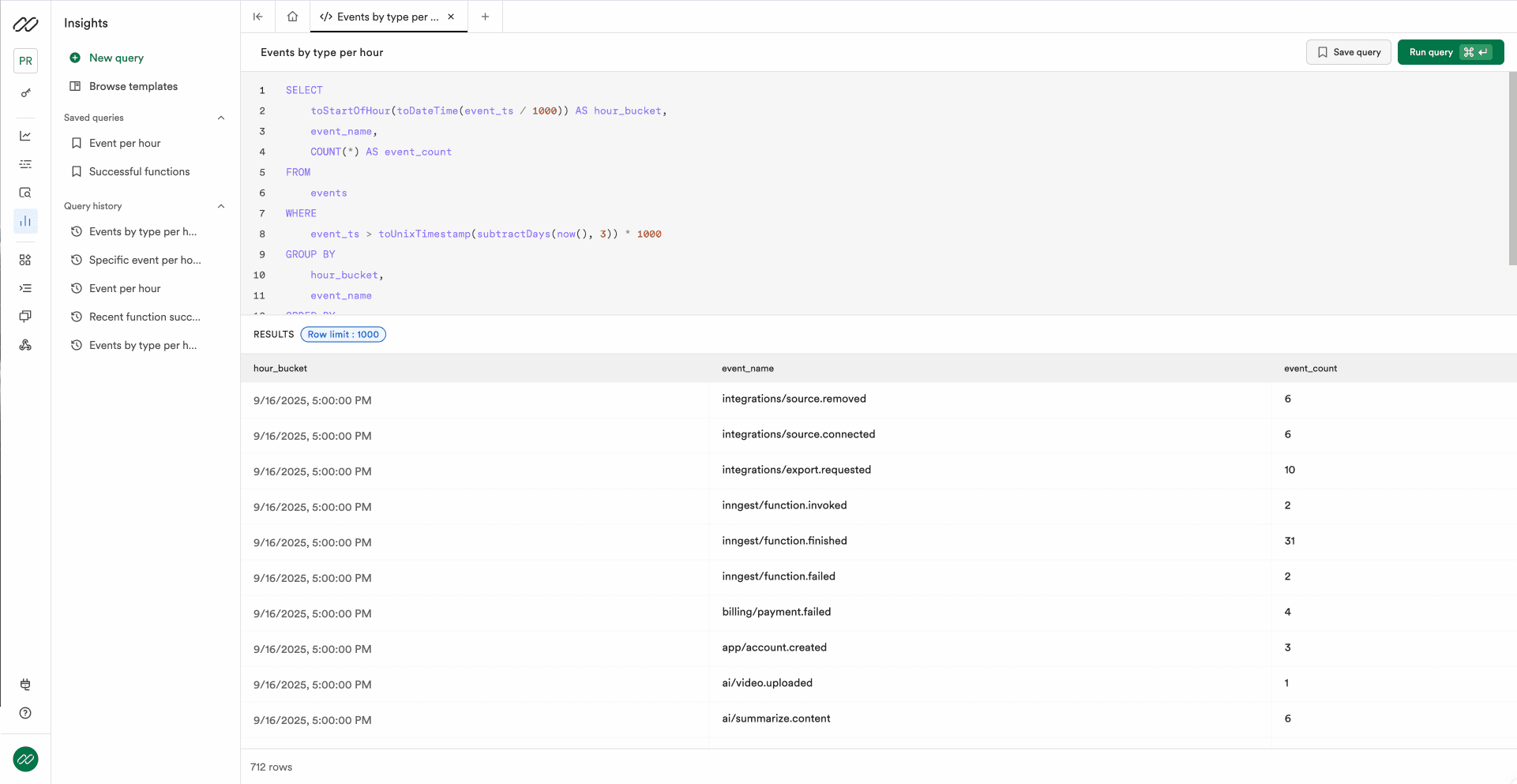
Access Insights through the Inngest dashboard by clicking on the "Insights" tab in the left navigation.
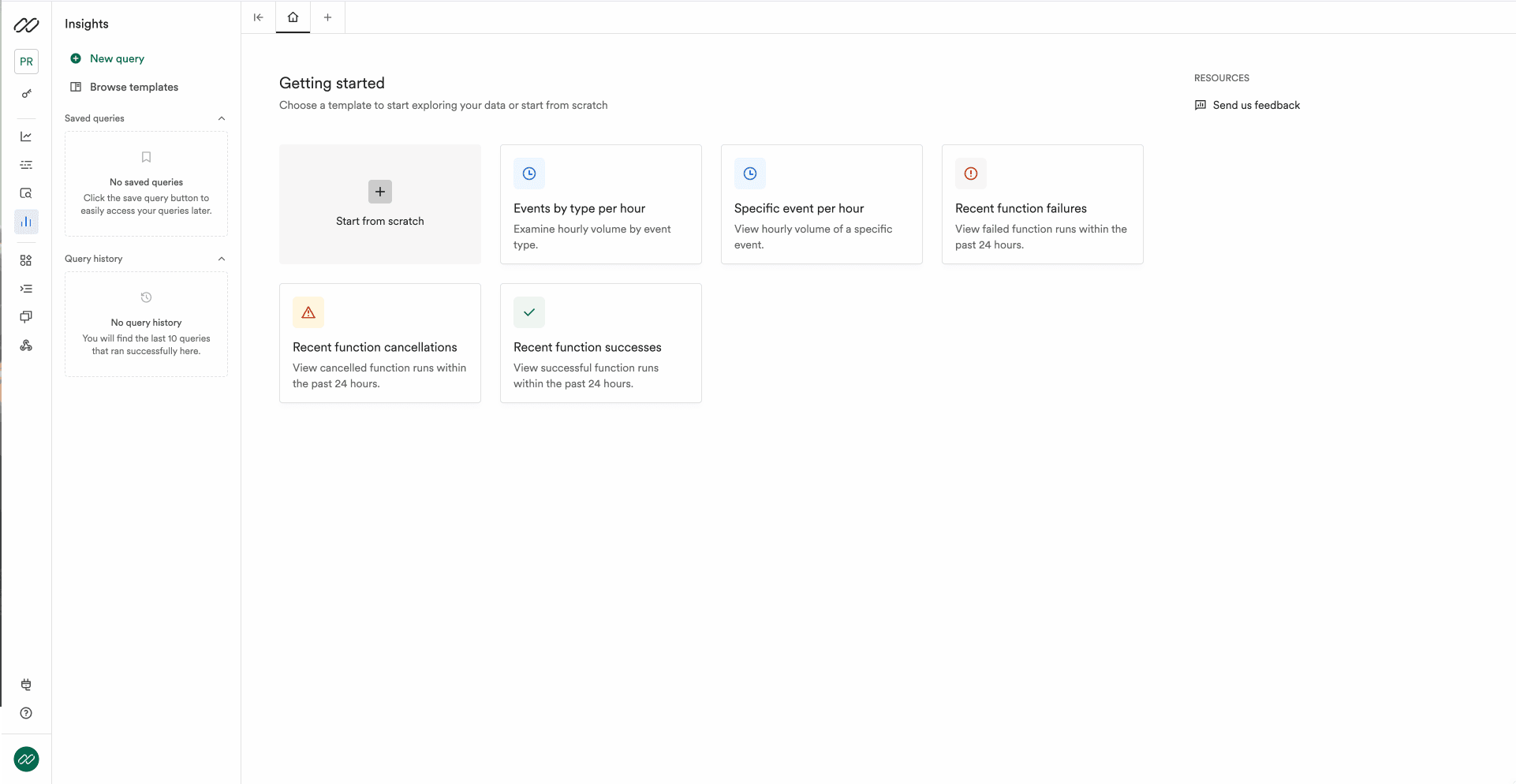
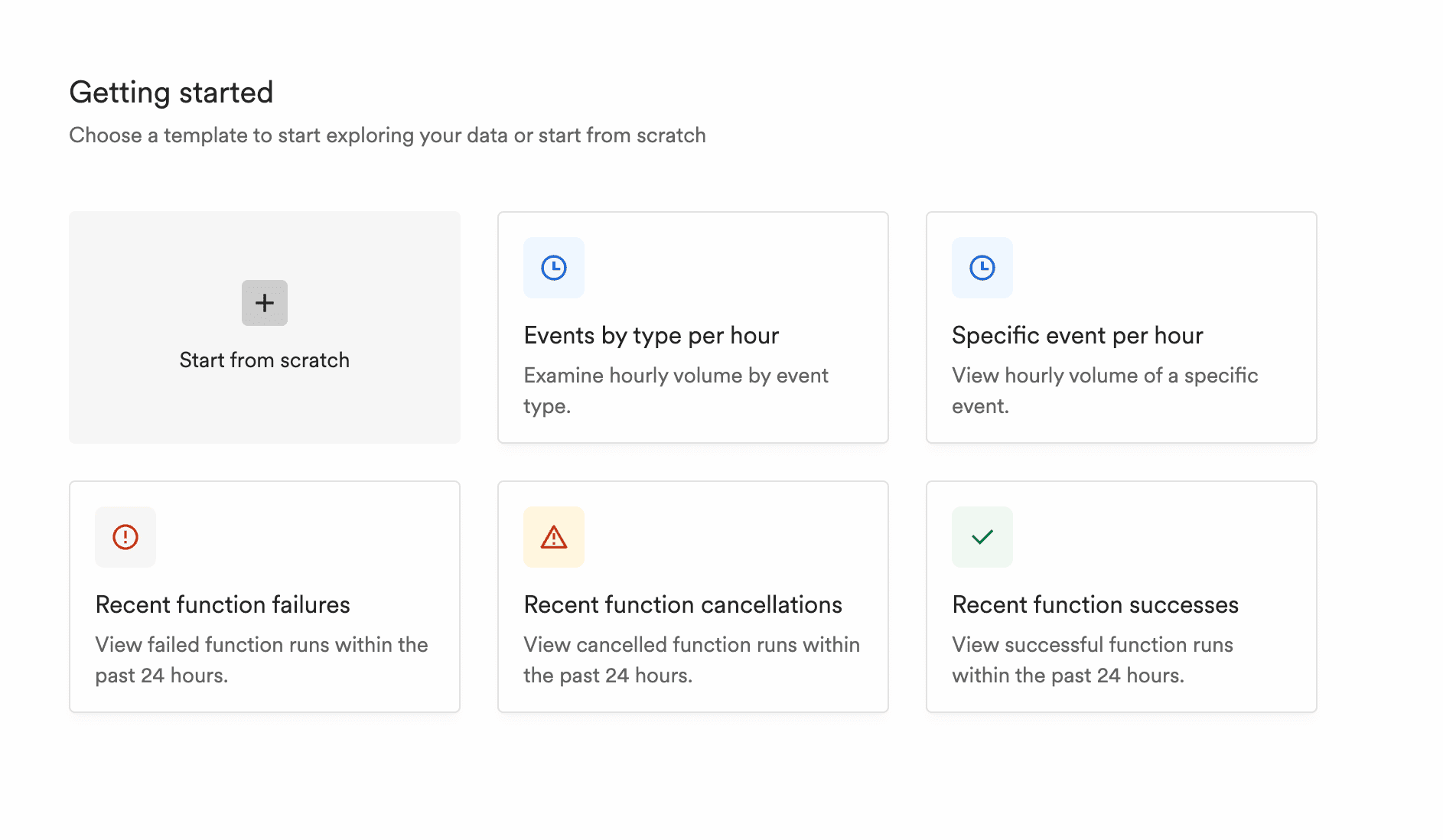
We have several pre-built query templates to help you get started exploring your data.
Insights AI
Insights AI helps you generate SQL queries using natural language. Instead of writing SQL manually, you can describe what you want to analyze and the assistant will create the query for you.
How it works
Simply describe what you want to query in plain English, and Insights AI will:
- Match events - Analyze your prompt and identify the most relevant events from your account to use in the query
- Write the query - Generate a properly formatted SQL query based on your event schemas
- Summarize results - Provide a natural language summary of your query results
Example prompts
- "Show me all failed functions in the last 24 hours"
- "Count orders by user for the past week"
- "What are the most common event types?"
- "Find all events where the amount is greater than 100"
The generated query is automatically inserted into the SQL editor and executed, so you can see results immediately and further refine the query if needed.
Insights AI is built using Inngest's own Realtime API, AgentKit, and durable execution with checkpointing.
SQL Editor
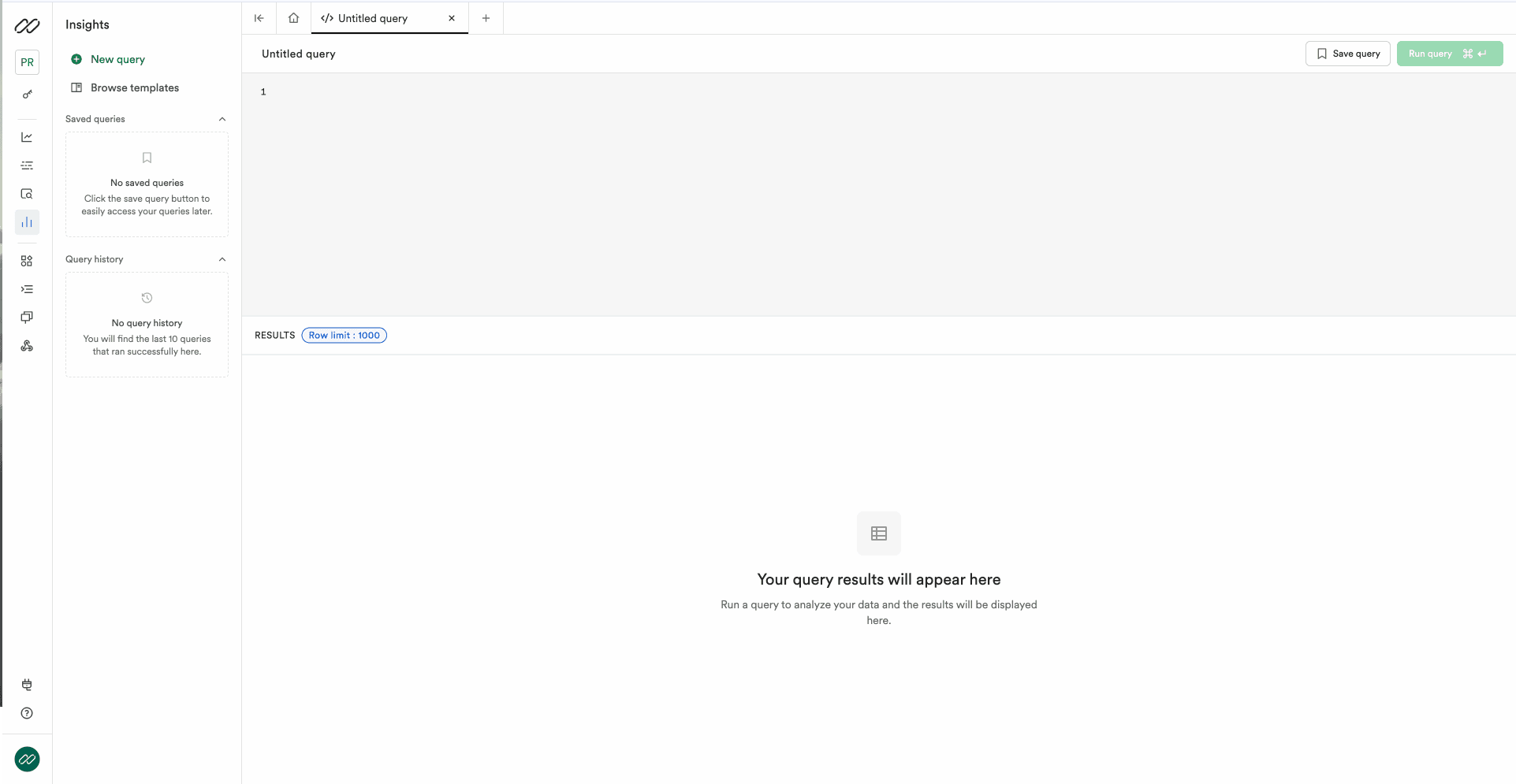
The Insights interface includes a full-featured SQL editor where you can:
- Write and execute SQL queries against your event and run data
- Save frequently used queries for later access
- View query results in an organized table format
- Access query history and templates from the sidebar
- Use autocomplete for SQL keywords, table names, column names, and event types
- Format your SQL queries automatically for better readability
Data Sources
Insights supports querying two data sources: events and runs.
Events Table
| Column | Type | Description |
|---|---|---|
id | String | Unique identifier for the event |
name | String | The name/type of the event |
data | JSON | Your event payload data |
v | String | Event format version |
ts | Unix timestamp (ms) | Unix timestamp in milliseconds when the event occurred - reference |
ts_dt | DateTime | The same time as ts as a DateTime |
received_at | Unix timestamp (ms) | Unix timestamp in milliseconds when the event was received by Inngest |
received_at_dt | DateTime | The same time as received_at as a DateTime |
For more details on the event format, see the Inngest Event Format documentation.
Runs Table
The runs table contains data about your function executions. This allows you to analyze function performance, debug failures, and track execution patterns.
| Column | Type | Description |
|---|---|---|
id | String | Unique identifier for the run (ULID) |
triggering_event_name | String | The name of the event trigger |
status | String | Run status: Queued, Running, Failed, Cancelled, Completed |
queued_at | DateTime | When the run was queued |
started_at | DateTime | When the run started executing (NULL if it hasn't started yet) |
ended_at | DateTime | When the run ended (NULL if still running) |
app_id | String | The app ID as defined in your app |
function_id | String | The "fully qualified" function ID. This is the app ID concatenated to the function ID as defined in your app with a - (e.g., my-app-my-function) |
inputs | Array(JSON) | Array of input events (for batch functions or functions triggered by multiple events) |
input | JSON | Shorthand for inputs[1] - if you know a single event triggered the run as opposed to a batch. ClickHouse arrays are 1-indexed, not 0-indexed. |
output | JSON | The output/return value from the function (NULL if not completed or no output) |
error | JSON | Error details if the run failed (NULL if successful) |
The function_id and app_id columns closely match your SDK calls in your app. For example, if you define a function with inngest.createFunction({ id: "process-order", ... }) in an app with ID my-app, the "fully qualified" function_id will be my-app-process-order. This also matches the slugs in URLs used on https://app.inngest.com/env/production/functions.
Due to a temporary limitation with function_id and app_id, you will not be able to query on partial strings (e.g., using LIKE) and sorting may be out of order.
Data Retention
Refer to pricing plans for data retention limits.
Result Limits
- Current page limit: 1000 rows
- Future updates will support larger result sets through async data exports
Schema Explorer
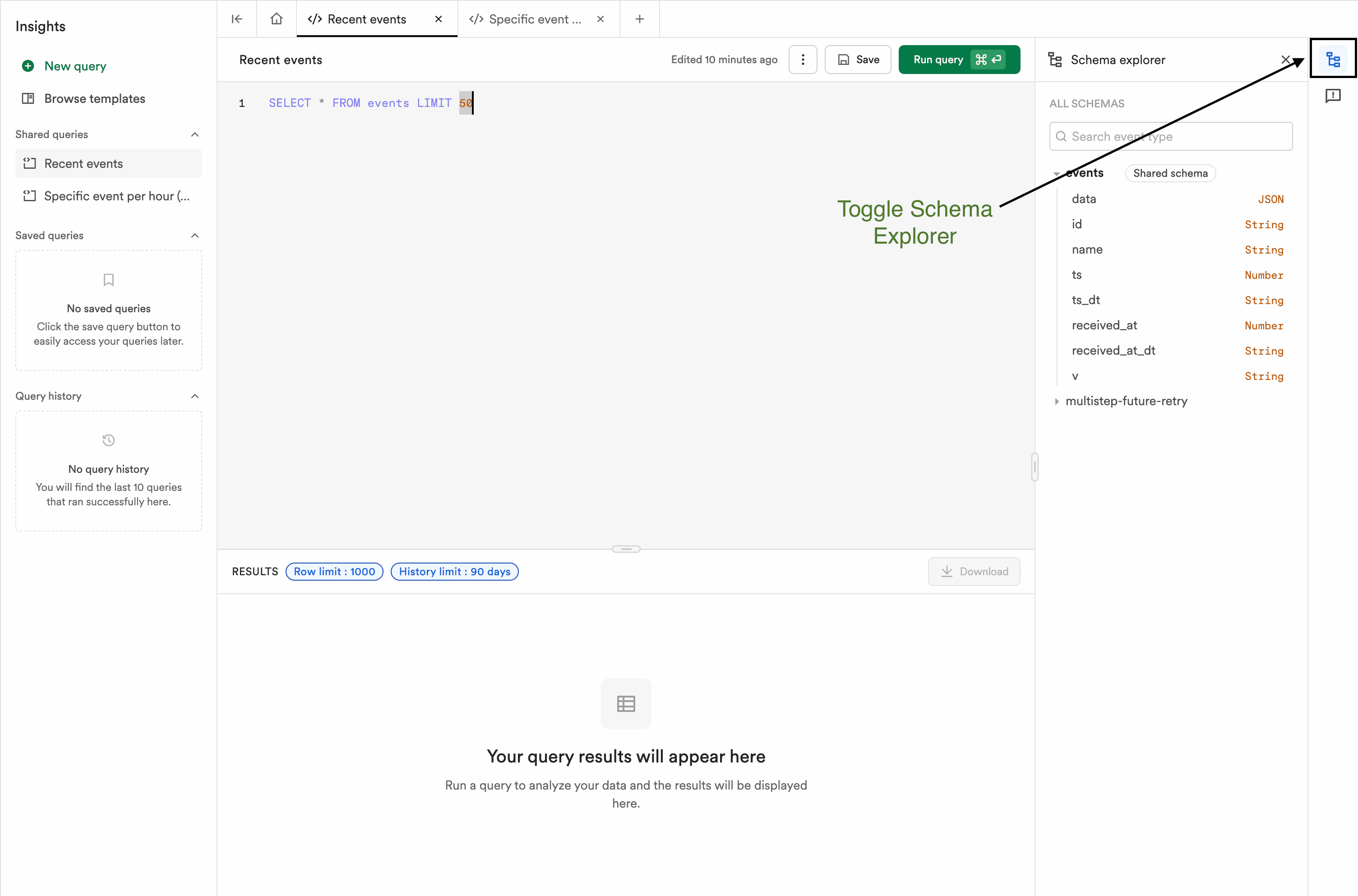
The Schema Explorer, located on the right side, enables you to explore the fields available to write your Insight query. Browse and search your event schemas without leaving the editor.
The two types of schemas you will notice are:
- Common Schemas - Standard fields across all events (
id,name,ts, etc.) - Event-specific schemas - The structure of each event type's
datapayload
Search is also available for more efficient filtering of fields. After you have located the field you want, you can click to copy and paste it into your SQL editor.
SQL Support
Insights is built on ClickHouse, which provides powerful SQL capabilities with some differences from traditional SQL databases.
Supported Functions
Arithmetic Functions
Basic mathematical operations and calculations. View ClickHouse arithmetic functions documentation
String Functions
String manipulation and search capabilities.
Date/Time Functions
For analyzing event timing and patterns. View ClickHouse date/time functions documentation
Other Supported Function Categories
Aggregate Functions
The following aggregate functions are supported:
| Function | Description |
|---|---|
ARRAY_AGG() | Aggregates values into an array * |
AVG() | Calculates average |
COUNT() | Counts rows |
MAX() | Finds maximum value |
MIN() | Finds minimum value |
STDDEV_POP() | Population standard deviation |
STDDEV_SAMP() | Sample standard deviation |
SUM() | Calculates sum |
VAR_POP() | Population variance |
VAR_SAMP() | Sample variance |
median() | Finds median value |
Working with JSON Data
Both events.data and runs columns like input, output, and error often contain JSON data.
JSON Dot Notation (Recommended)
Insights provides syntactic sugar for accessing JSON fields using dot notation. This will attempt to infer the type, but for maximum control you can rely on ClickHouse native JSON functions.
SELECT data.function_id, COUNT(*) as count
FROM events
WHERE name = 'inngest/function.failed'
GROUP BY data.function_id
ORDER BY count DESC;
SELECT input.user_id, input.order.amount
FROM runs
WHERE function_id = 'my-app-process-order'
  AND input.order.amount > 100;
ClickHouse JSON Functions
For more complex JSON operations and control over types, you can use ClickHouse's native JSON functions:
SELECT JSONExtractString(data, 'function_id'), COUNT(*) as count
FROM events
WHERE name = 'inngest/function.failed'
GROUP BY JSONExtractString(data, 'function_id')
ORDER BY count DESC;
Array Indexing
For array data, you can use bracket notation to access specific elements:
-- Access the first input event (same as using `input`)
SELECT inputs[1].user_id
FROM runs
WHERE function_id = 'my-app-process-order';
Example Queries
Basic Event Filtering
SELECT count(*)
FROM events
WHERE name = 'inngest/function.failed'
  AND data.function_id = 'generate-report'
  AND ts > toUnixTimestamp(addHours(now(), -1)) * 1000;
Extracting JSON Data and Aggregating
SELECT data.user_id as user_id, count(*)
FROM events
WHERE name = 'order.created'
GROUP BY user_id
ORDER BY count(*) DESC
LIMIT 10;
Count runs by status in the last 24 hours
SELECT status, COUNT(*) as count
FROM runs
WHERE queued_at > now() - INTERVAL 1 DAY
GROUP BY status
ORDER BY count DESC;
Saved Queries
You can save frequently used queries for quick access. Saved queries are private to you by default.
Shared Queries
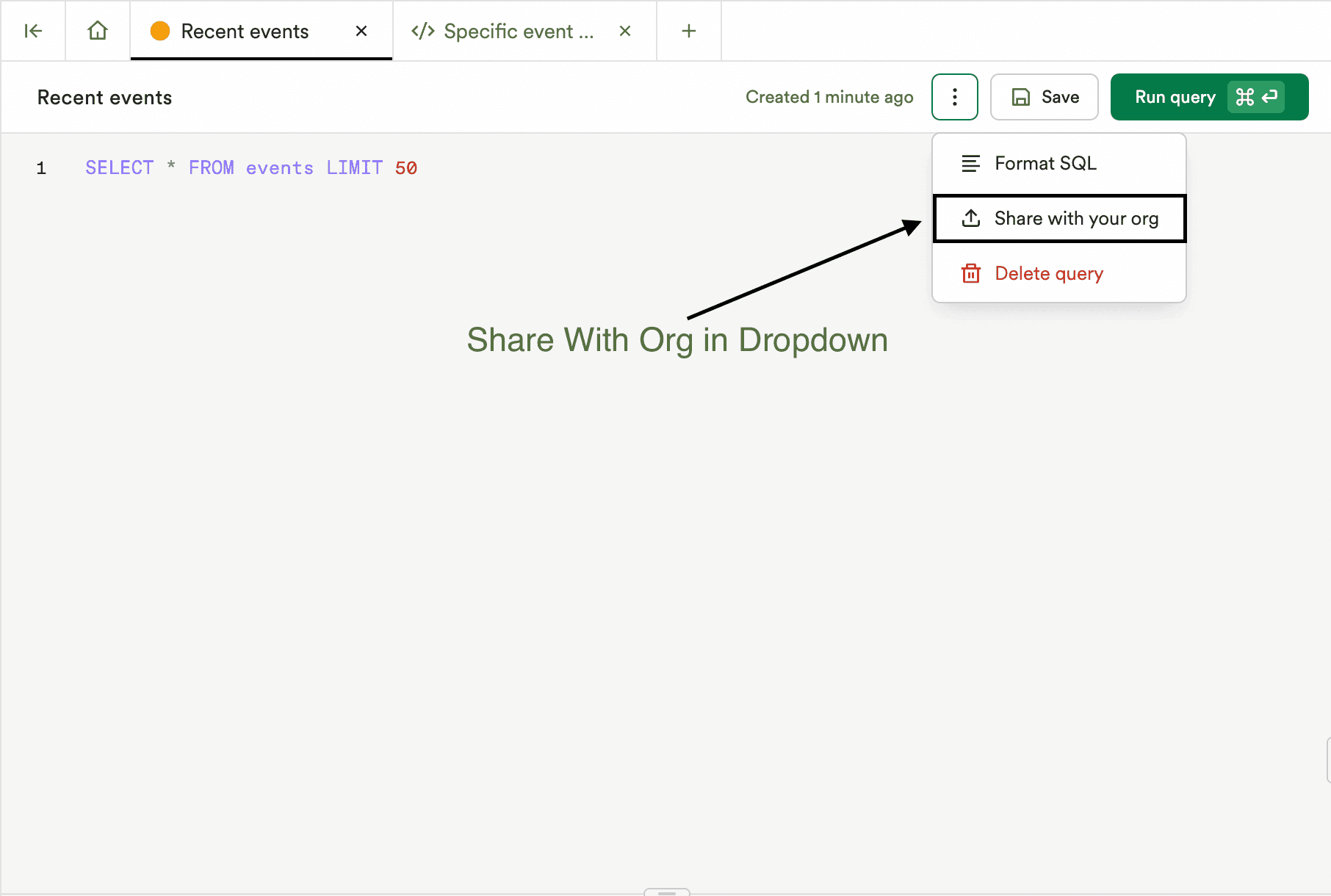
Some queries are valuable to the whole organization, and now you can more easily share those across your organization. Once you save a query, you can select the actions dropdown and share it with your organization.
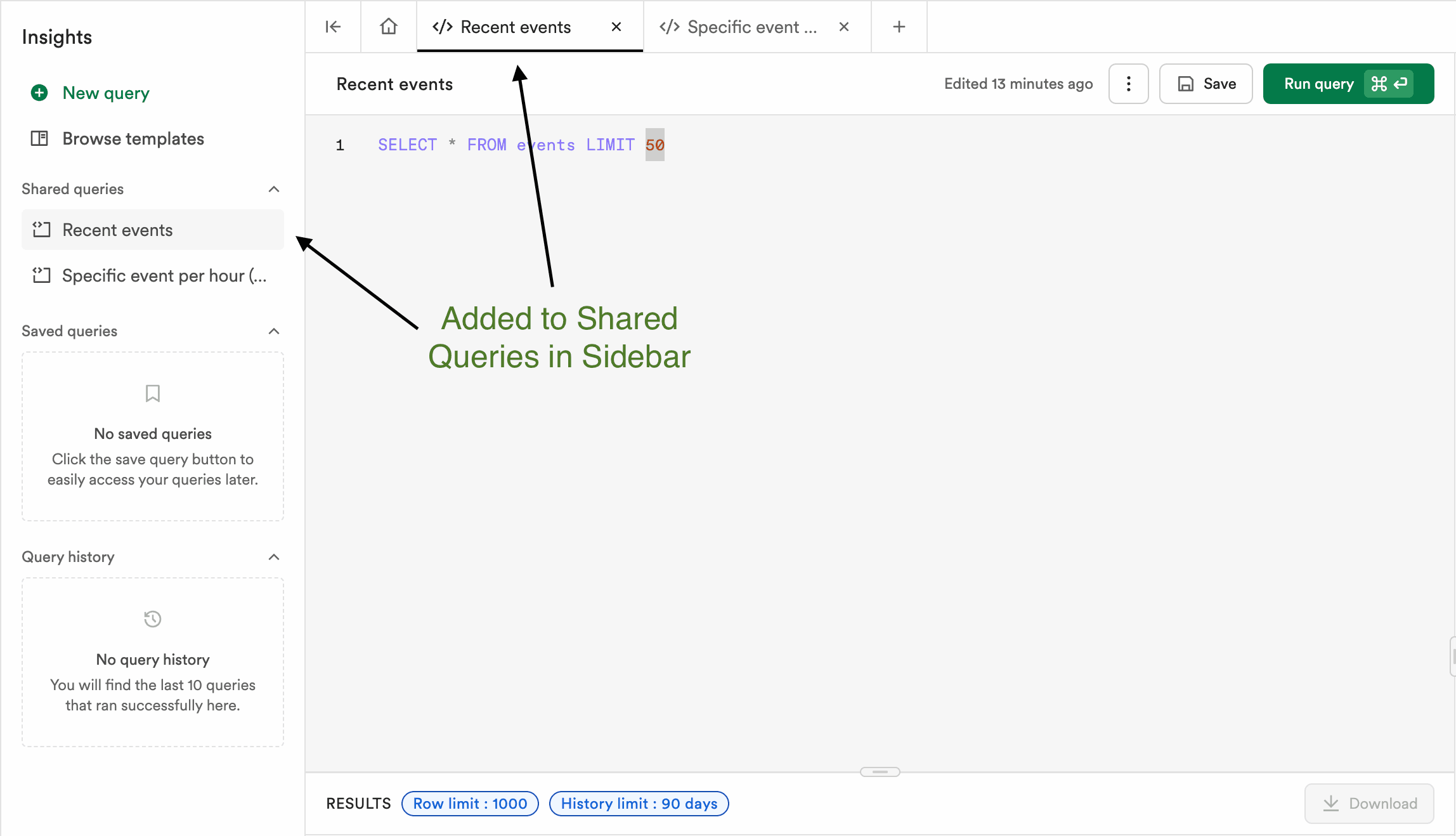
Shared queries will be added to a Shared queries navigation dropdown within the Insights Sidebar.
Roadmap
Coming Soon
- Pagination for large result sets
- Async data exports for results larger than 1000 rows
Future Enhancements
- Support for CTEs (Common Table Expressions)
- Advanced visualization capabilities and dashboards
Need Help?
If you encounter issues or have questions about Insights:
- Check this documentation for common solutions
- Review the ClickHouse SQL reference for advanced function usage
- Contact support through the Inngest platform
Insights is actively under development. Features and column names may change as we continue to improve the product.